
On this page
Most WordPress cleanups stop when the homepage looks normal again. The spam links are gone, the redirect is gone, the security plugin shows green. Job done.
Except the attack we tracked recently was built for exactly that moment. It did not touch the homepage. It sat inside the login page, copied every username and password typed into it, and kept a spare copy of itself in a folder most site owners never open. Clean the obvious files and it quietly came back.
This post walks through where that kind of code hides, how to check your own site in about 20 minutes, and what to change so it cannot return.
What the attack actually did
The campaign targeted WordPress sites run by developers and agencies, which makes sense. One stolen developer login can open the door to many client sites.
Three things stood out:
- A credential logger inside wp-login.php. Extra code was injected into the core login file. Every time someone logged in, their username and password were saved or sent somewhere else before WordPress carried on as normal. Nothing looked broken.
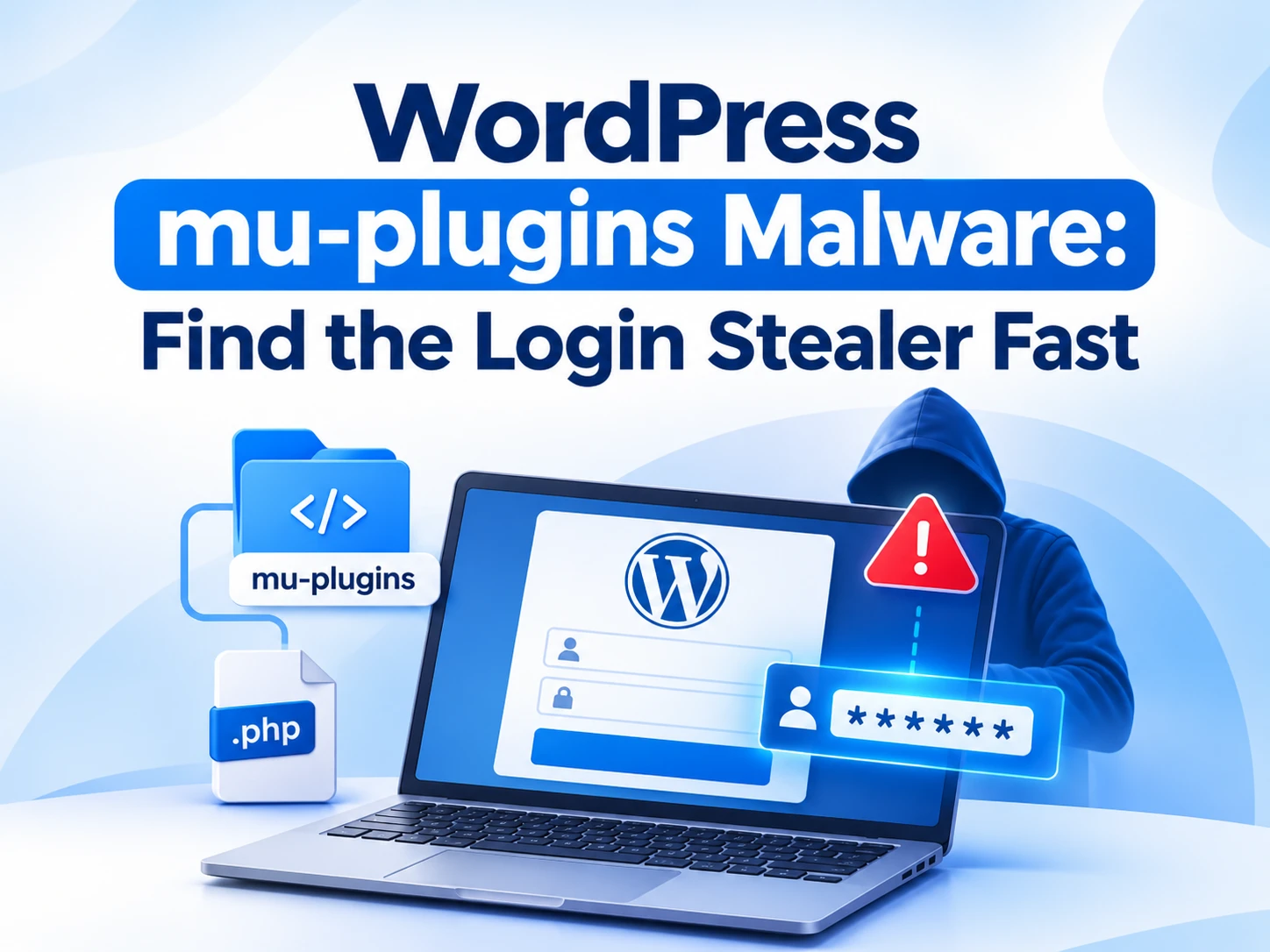
- Persistence through mu-plugins. A copy of the malicious code lived in wp-content/mu-plugins, the "must-use" plugins folder. Anything in that folder runs on every page load, cannot be switched off from the dashboard, and does not show in the normal Plugins list.
- A disguised file. One indicator was an image-named file, Stained_Heart_Red-600x500.png, that was not really an image. Naming code like a media file is an old trick because nobody opens a PNG to read it.
The combination is what makes it nasty. Restore wp-login.php from a clean copy and the mu-plugin can write the logger back. Delete the mu-plugin but miss the fake image and the loader can rebuild it.
Why mu-plugins is the perfect hiding place
Must-use plugins exist for good reasons. Hosts and agencies use them for things that should never be disabled by accident: caching hooks, security rules, custom post types a theme depends on.
That same design helps an attacker:
- Invisible in the admin. The Plugins screen has a separate "Must-Use" tab that only appears if something is in the folder. Most people never notice it.
- Always on. No activation step, no deactivate button.
- Loads first. Must-use plugins load before regular plugins, so they can interfere with security plugins that load later.
- Survives plugin cleanups. Deleting or reinstalling every normal plugin leaves this folder untouched.
On a healthy site, mu-plugins is usually empty or holds one or two files you can explain. If you find a file there and nobody on your team knows why, treat it as suspicious until proven otherwise.
The 20-minute check
You need file access (SFTP, your host's file manager or SSH) and a fresh backup before you change anything.
- Open the mu-plugins folder. Go to wp-content/mu-plugins. List every file. For each one, ask: who put this here and why? Your host's documentation will tell you which files are theirs. Anything left over goes on a list.
- Compare core files against a clean copy. Download the same WordPress version from wordpress.org and compare wp-login.php, wp-settings.php and index.php with yours. If you have WP-CLI, wp core verify-checksums does this for every core file in one command and lists anything modified.
- Hunt for code dressed as media. Search wp-content/uploads for files whose type does not match their name. A real PNG starts with binary image data. A fake one usually starts with readable code. On SSH, the file command shows the true type of each file. Also look for .php files anywhere inside uploads. There should be none.
- Check recently modified files. Sort files by modified date. Core files changing on a day you did not update WordPress is a red flag. Most hosts let you sort by date in the file manager.
- Review admin users and application passwords. Look for admin accounts you did not create and application passwords you do not recognise under each user profile. Attackers often add a backup way in.
Cleaning it up properly
Order matters here. Clean in the wrong order and the code rewrites itself.
- Take the site offline or into maintenance mode so nobody logs in while you work. Every login is another stolen password.
- Remove persistence first: the unknown mu-plugins files and any disguised files in uploads.
- Replace core files with fresh copies of your exact WordPress version, then run the checksum check again.
- Reinstall plugins and themes from official sources rather than trusting the files already on the server.
- Rotate every credential: all WordPress users, hosting panel, SFTP, database password (update wp-config.php to match) and the security salts in wp-config.php. Assume anything typed into that login page is known.
- Check for the same pattern on every other site that shares hosting or logins with this one.
Locking the door afterwards
These settings make a repeat much harder:
- Turn off file editing in the dashboard by adding define( 'DISALLOW_FILE_EDIT', true ); to wp-config.php.
- Block PHP execution in uploads with a server rule. Images never need to run code.
- Add two-factor login for every admin. A stolen password alone is no longer enough.
- Watch file changes. A file-integrity monitor that alerts when wp-login.php or mu-plugins changes would have caught this attack on day one.
- Give each person their own account. Shared admin logins make it impossible to tell who did what.
The takeaway
A site that looks clean is not the same as a site that is clean. The most damaging WordPress attacks are the quiet ones that keep working after the cleanup, and the login page plus the mu-plugins folder is where they like to live.
If you manage WordPress for clients, add a two-minute look at mu-plugins to every handover and every monthly check. It is the cheapest security habit you will pick up this year.
Want a second pair of eyes on a site you suspect? Bit Aura does WordPress security reviews and custom plugin work. Get in touch.
Related services
Want a second pair of eyes on a site you suspect?
Tell us what you are planning and we will point you to the right next step. No pressure.